Statistics and Monitoring
See server FPS, player count, CPU, and RAM in one place. Use live metrics, historical charts, and server events to investigate performance.
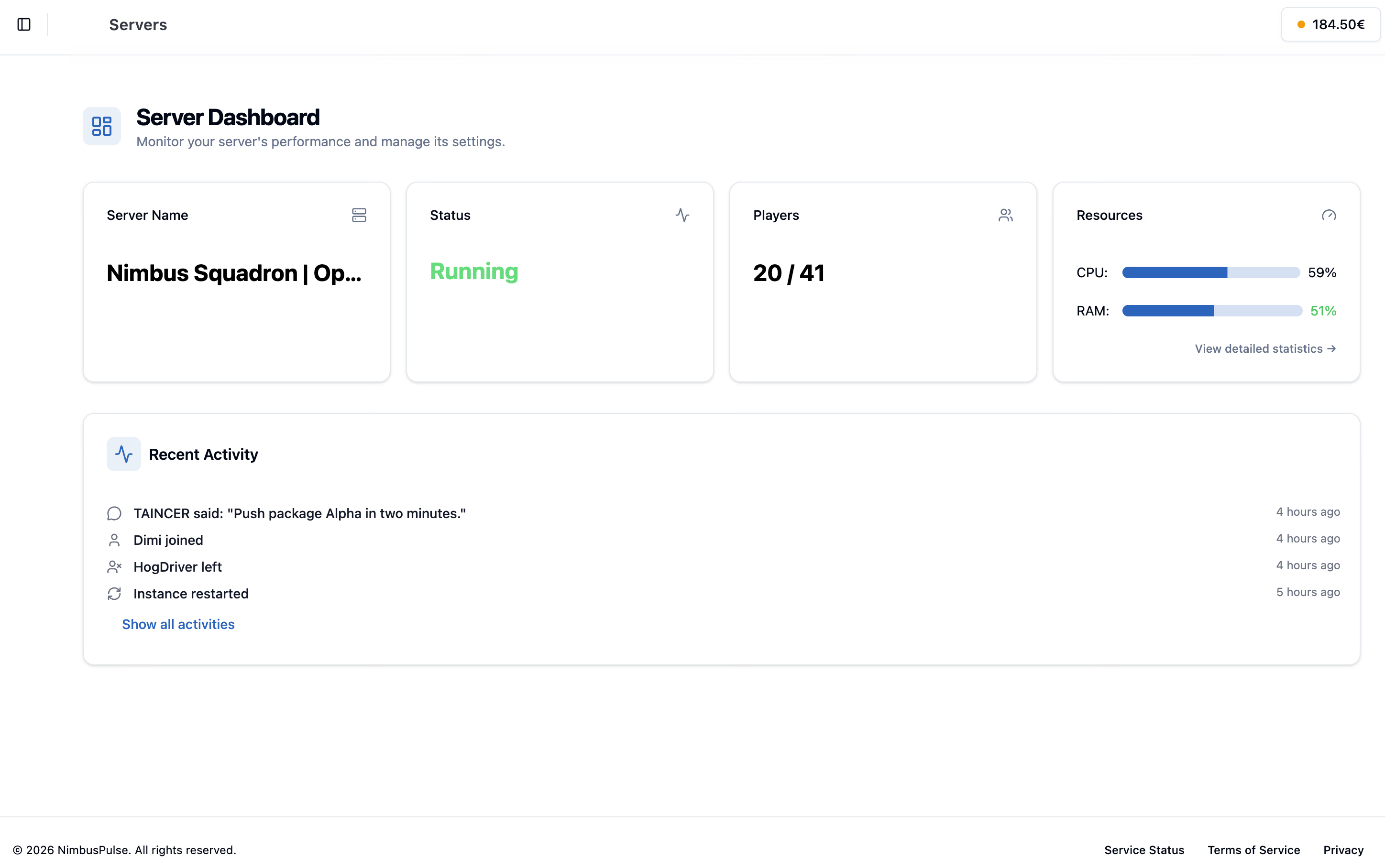
- Metrics
- Live + history
- Server FPS
- Tracked
- Player Count
- Tracked
- Resources
- CPU + RAM
See how your server is running.
Track the signals that matter when a DCS server feels overloaded or unstable.
Server FPS
Track DCS server FPS as part of your historical server picture.
Player Count
Review how many players were connected over time.
CPU and RAM
Inspect resource usage, including core-level CPU visibility.
Historical Charts
Use trends to understand performance instead of guessing from one moment.
Live Health
Check current server state, resource pressure, and player activity from one panel.
Performance Trends
Review historical charts to connect server behavior with missions and events.
Resource Visibility
Watch RAM and CPU usage so overloaded missions are easier to spot.
Operational Context
Combine player counts, FPS, events, and server actions into one admin view.
Follow performance over time.
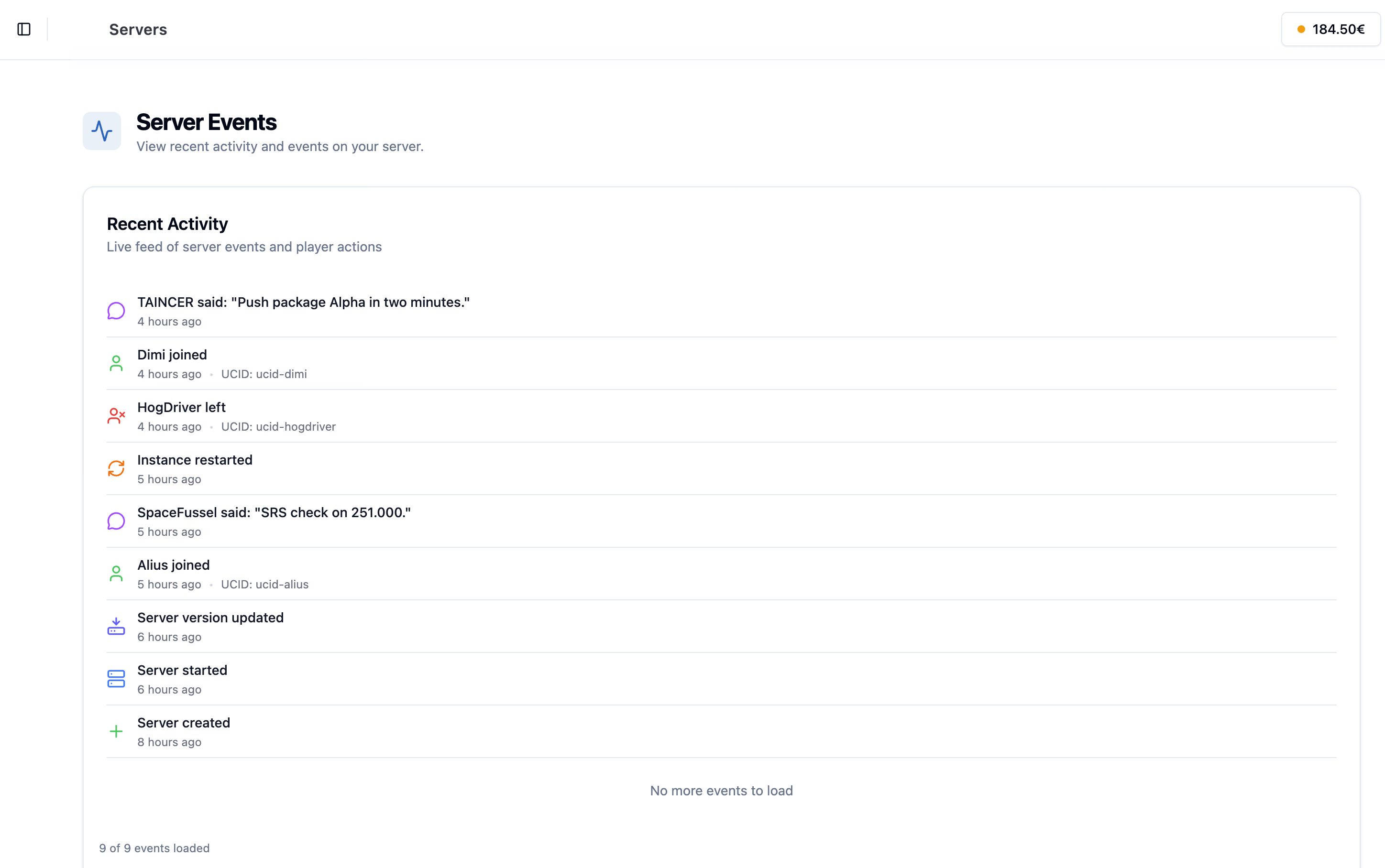
Dashboard metrics and the server event timeline work together to explain server behavior.
Event timeline context
Server events help connect restarts, joins, leaves, chat, and updates with visible server behavior.
Find out what changed.
Statistics are most useful when they help admins change something with confidence.
Performance Debugging
Use charts to understand when a mission, mod, or player load affects the server.
- Server FPS history
- CPU and RAM usage
- Player count context
Event Review
Line up performance changes with starts, stops, restarts, and admin actions.
- Restart impact
- Session timeline
- Admin action context
Capacity Planning
Use real usage patterns to choose server size and operating habits more confidently.
- Peak player periods
- Mission load comparison
- Plan changes with evidence
From metric to action.
Review the trend, connect it to the server timeline, and adjust the setup based on evidence.
-
Open Statistics
Use the server Control Panel to inspect the latest server metrics.
-
Compare trends
Review server FPS, player count, CPU, and RAM across time.
-
Connect to events
Use server events and admin actions to explain performance changes.
-
Adjust the server
Change missions, mods, schedules, or plans based on real server behavior.
Good to know.
Need help with your setup? Talk to us about the missions and tools you want to run.
Ask us on DiscordKeep an eye on every mission.
NimbusPulse combines live metrics, historical charts, and server context so performance work is less guesswork.